




Global Reimbursement Add a Deposit Account
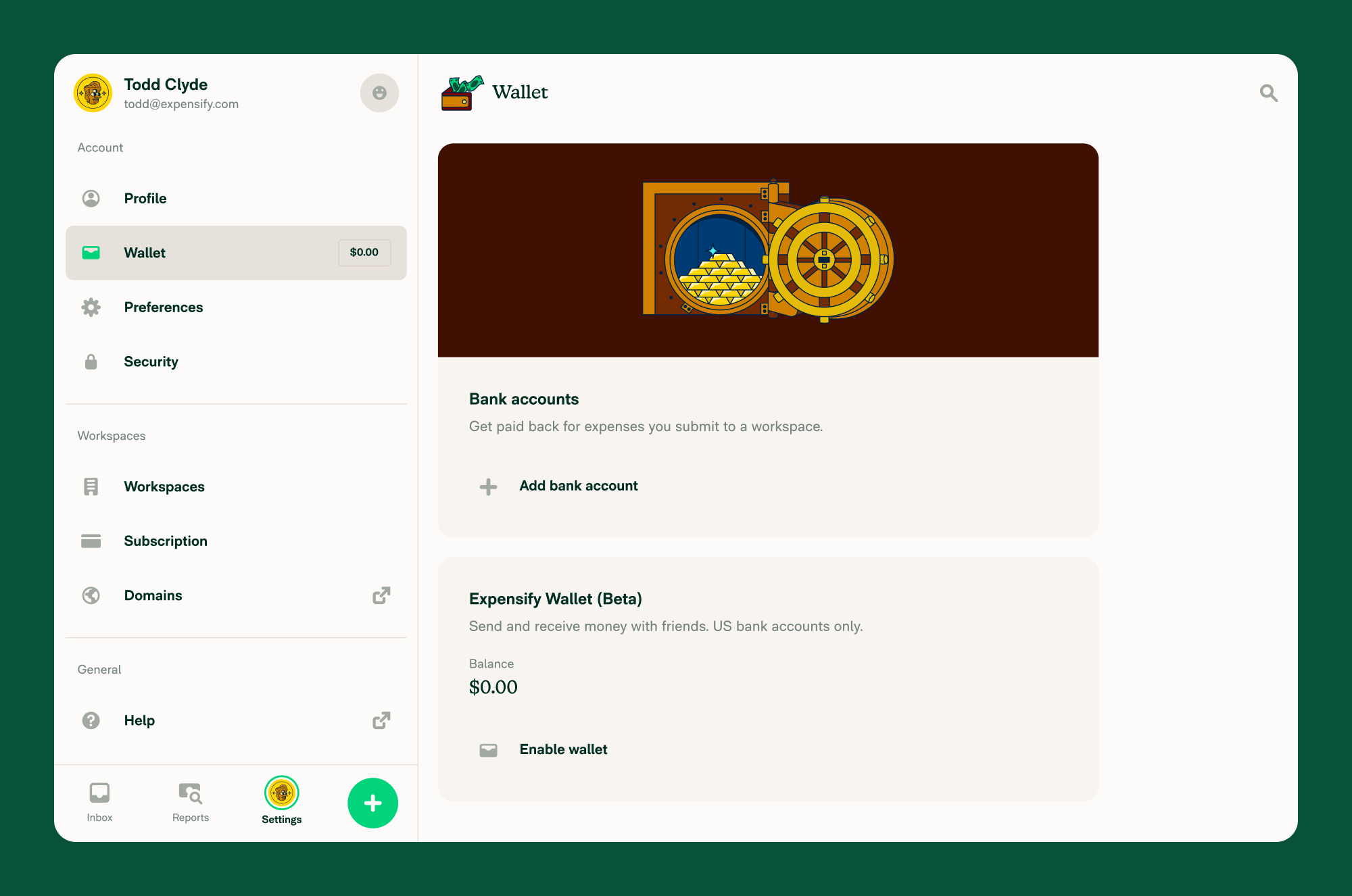
You can add a personal bank account to receive reimbursements in over 190 countries. All personal accounts are managed under Account > Wallet > Bank accounts. The steps differ depending on whether you’re connecting a US or non-US account.
Add a Non-U.S. Bank Account
You can add a non-U.S. bank account by manually entering your bank details. The fields vary depending on your country and currency.
To connect a non-U.S. bank account:
- Go to Account > Wallet > Bank accounts.
- Click Add bank account.
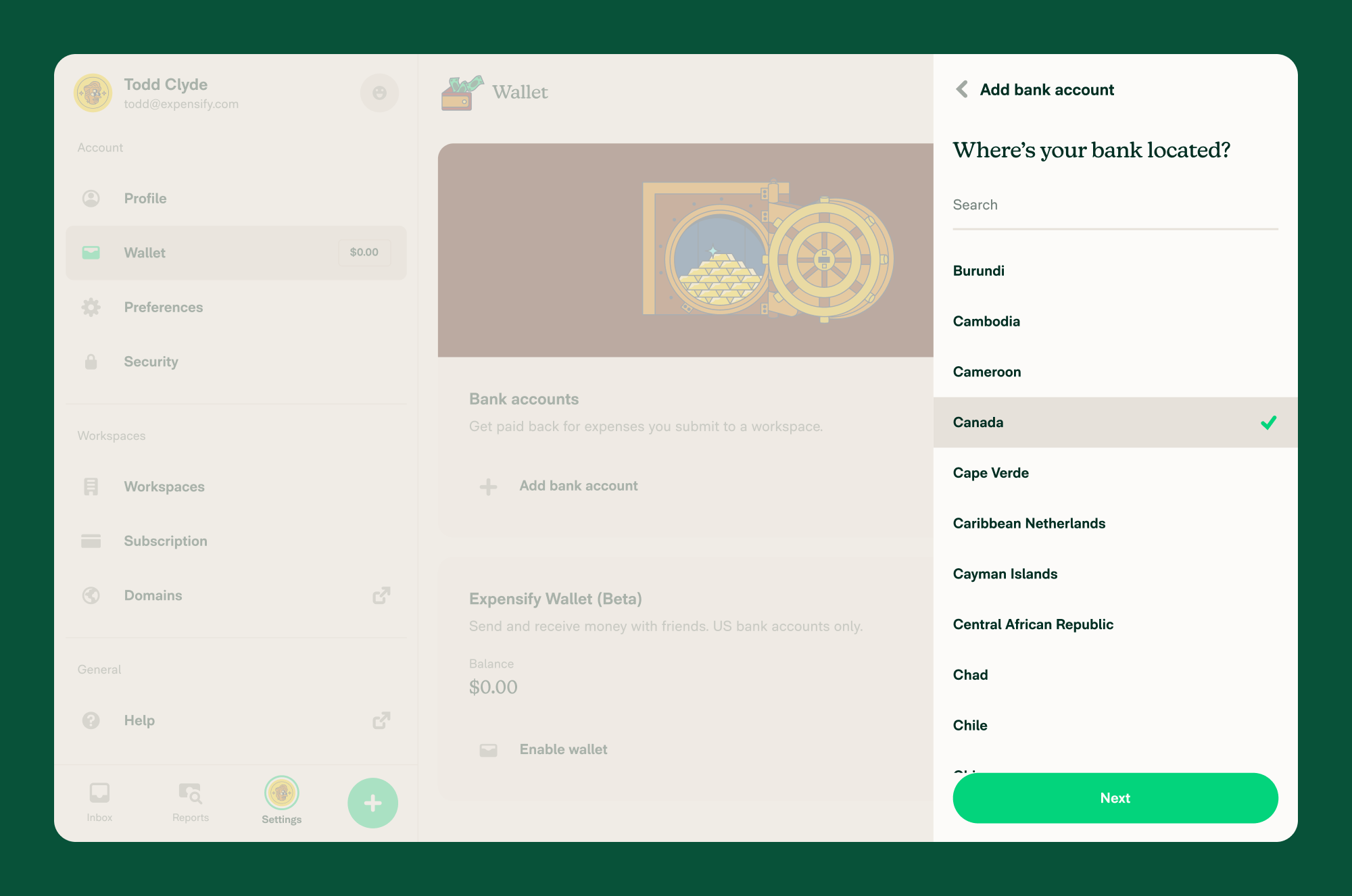
- Select your country.
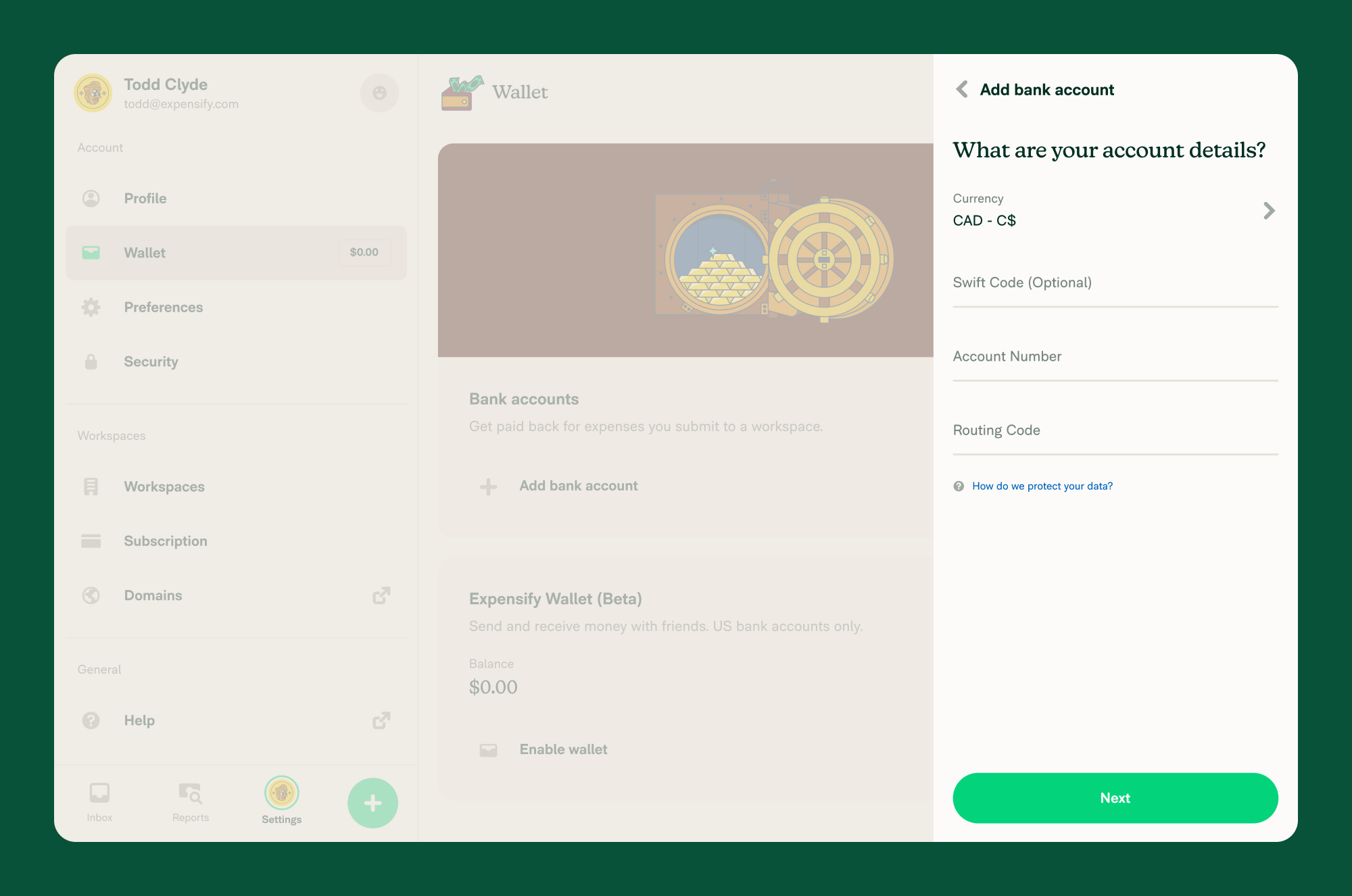
- Confirm or update the currency (defaults to local currency).
- Enter your bank account details, which may include:
- Account number
- Routing or SWIFT code
- Optional fields (clearly marked)
- Select your account type (e.g., Current or Savings).
- Enter your bank name and address.
- Add your personal details, such as name and residential address.
- Some fields may auto-fill from your profile.
- Review your details on the Confirmation screen.
- Tap any field to edit.
- Accept the Terms of Service and click Confirm.
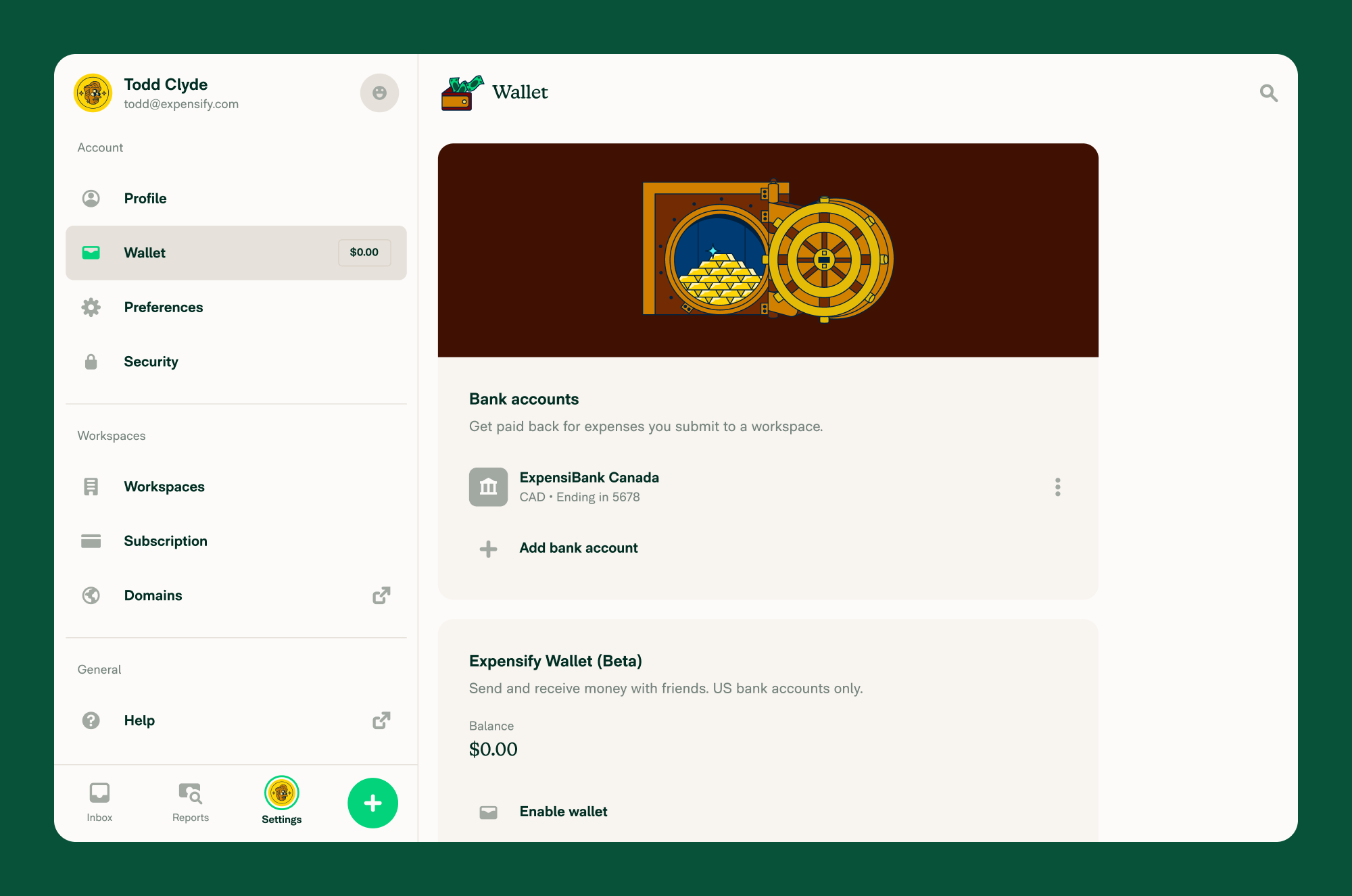
- Once connected, your account will appear in the Bank accounts section.
FAQ
Why does my SWIFT/BIC code show a format error?
Some banks require a strict SWIFT/BIC format: 8 or 11 characters, made up of 6 letters followed by 2 or 5 letters or numbers. If the code you enter doesn’t match that pattern, Expensify shows the error “SWIFT/BIC must be 8 or 11 characters long, with 6 letters followed by 2 or 5 letters or numbers.”
The 8-character version is 6 letters plus 2 letters or numbers. The 11-character version adds a 3-character branch code on the end. A code that begins with numbers, such as 12345678, is rejected because the first 6 characters must be letters.
Format requirements vary by country and currency, so other banks may accept a different pattern and show a different message. Enter the code exactly as your bank provides it.
Where do I find my SWIFT/BIC code?
Your bank provides your SWIFT/BIC code. It usually appears on your bank statement or in your online banking portal. Contact your bank directly if you can’t find it or aren’t sure which code to use.
Can I add more than one personal bank account?
Yes. You can add multiple accounts, but only one can be selected as the default for reimbursements.
Can I delete a bank account?
Yes. Use the three-dot overflow menu beside any account to delete it.
Is there a fee to add a personal account?
No. Expensify does not charge you to add or use a personal account. It’s included in your Expensify subscription.
Are there countries where personal bank accounts aren’t supported?
Yes. Expensify supports personal bank accounts from 190+ countries, but there’s a small number not supported. The full list of supported countries is available when adding a personal bank account.


